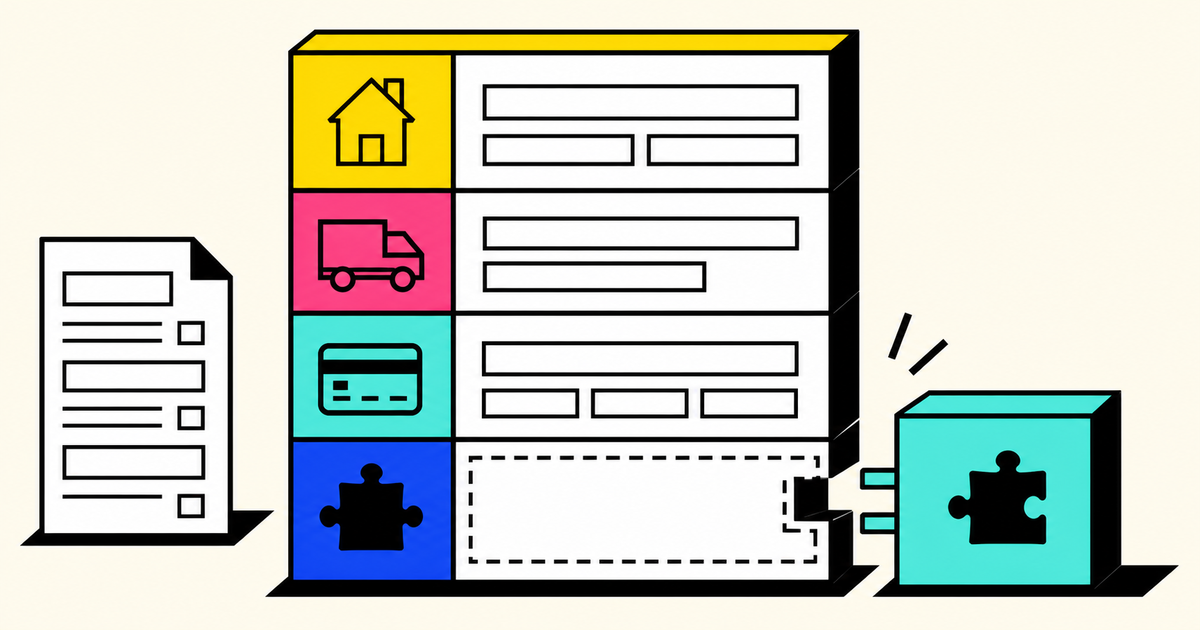
WooCommerce Block Checkout is the modern, block-editor checkout experience. It can make layout and store editing easier, but it also changes how extensions add fields, validate customer input, update totals and exchange data with the server. A plugin that works perfectly with the classic checkout shortcode is not automatically compatible with the Checkout block.
This guide helps store owners identify the checkout in use, evaluate an extension’s compatibility claim and run a realistic pre-launch test. It covers the complete path from a visible field to totals, payment, order metadata and emails—because “the control appears on screen” is only the first check.
WooCommerce Block Checkout versus classic checkout
| Area | Checkout Block | Classic checkout |
|---|---|---|
| Page content | Checkout block edited in the WordPress block editor | [woocommerce_checkout] shortcode |
| Customer interface | Block-based components with Store API state | Template and hook-driven form |
| Extension integration | Requires block and Store API-aware support for checkout changes | Often uses established PHP hooks and checkout-field filters |
| Customization check | Confirm the extension explicitly documents Checkout Blocks | Confirm support for classic checkout and the active template overrides |
Both experiences still create WooCommerce orders and use the store’s products, taxes, shipping and payment methods. The important difference is the integration surface during checkout. Blocks maintain interactive state through modern client components and WooCommerce APIs. Classic checkout has a long-established collection of PHP actions, filters and templates. Supporting one does not imply supporting the other.
How to tell which checkout your store uses
- In WordPress administration, locate the page assigned as Checkout in WooCommerce settings.
- Edit that page and open the editor’s List View.
- If the main content is a Checkout block, the live page is intended to use WooCommerce Block Checkout.
- If the content contains
[woocommerce_checkout], it is the classic shortcode checkout. - Open the public checkout with a non-empty cart and verify that the assigned page, not an old duplicate or custom funnel, is actually served.
A page builder, checkout funnel or headless storefront may replace both standard paths. In that case, ask the vendor which WooCommerce APIs and extension points it supports. Do not assume a page is block checkout merely because it was visually designed with blocks elsewhere.
What “compatible with Checkout Blocks” should mean
A meaningful compatibility claim describes a workflow, supported versions and known limits. For a checkout extension, ask whether all of these stages work:
- Display: the control appears in the intended block checkout location and remains usable on mobile.
- State: the customer’s choice remains selected while address, shipping, coupon or cart data changes.
- Validation: required rules are enforced on the server as well as in the browser, with a useful error.
- Totals: fees, discounts, shipping and tax recalculate without duplicates or stale values.
- Persistence: the final value reaches the WooCommerce order or line item, including HPOS-backed stores where supported.
- Operations: administrators and fulfillment staff can see the information where they work.
- Customer communication: the right details appear in order views and supported emails without leaking internal data.
Check the vendor’s product page and changelog rather than relying on a generic marketplace badge. Compatibility can depend on the current WooCommerce version and the extension’s specific feature. A plugin might support block checkout for coupon validation but not add a visual block of its own—and that can be entirely correct for its job.
A compatibility audit by extension type
Checkout fields and paid add-ons
A field needs more than a block-editor placeholder. Test conditional visibility, input limits, persistence and where the result appears after purchase. A paid option also has to update totals while the Checkout block recalculates. The fee should appear once, disappear when deselected and survive the final server-side order creation.
Gift Wrap + Message supports its focused order-wide gift-wrap workflow in supported versions of Checkout Blocks and in classic checkout. It can offer a free or fixed-fee choice and an optional message, then preserve the order-level result for fulfillment. For planning that workflow, read WooCommerce Checkout Add-Ons: Gift Wrap and Paid Extras.
Coupon rules
Coupon validation may happen without adding a new visible checkout component. Test the rule from cart entry through checkout recalculation and final order placement. Use logged-in customers and guests where the extension supports both, and test an eligible customer, an ineligible returning customer and an ordinary coupon that should remain unaffected.
First Order Coupon Guard adds a per-coupon “First order only” restriction and supports the documented Checkout Blocks and classic workflows. It evaluates the qualifying order history available to WooCommerce; it does not promise perfect real-world identity detection or prevent one person from using unrelated identities. For an account-only DIY example, compare the first-order coupon snippet, then review the plugin’s broader limits in the documentation.
Payment gateways
Confirm that every production payment method explicitly supports the Checkout block. Exercise redirects, wallets, additional authentication, cancellations and the return to the store. Verify that a successful provider payment becomes a paid WooCommerce order and that a failed attempt does not accidentally reduce stock or show a false success screen.
Shipping, tax and address-dependent logic
Change country, postcode and shipping method during checkout. Watch whether rates, taxes, fees and availability update together. If a rule depends on billing or shipping data, confirm which address it uses and whether the same result is enforced at order creation. Do not rely on a value that exists only in the browser.
Email and post-checkout tools
Some extensions act after checkout rather than inside the Checkout block. Their compatibility question is different: does the block checkout create the order data and status their later workflow expects? Payment Rescue CTA, for example, adds a retry-payment action to the Customer failed-order email for an eligible order. It does not modify the checkout form, prevent failures or automatically retry payment.
A pre-launch test matrix
Use a staging site that closely matches production, including the theme, Checkout page, taxes, shipping, payment methods and optimization stack. Keep test payment credentials and real payment credentials separated. Record the expected result before each test so a visually plausible outcome does not pass by accident.
| Scenario | What to verify |
|---|---|
| Guest, desktop | Validation, totals, payment and order creation |
| Guest, mobile | Responsive layout, keyboard behavior and wallet visibility |
| Logged-in returning customer | Saved address behavior, account data and customer-specific rules |
| Address or shipping change | Rates, tax, fees and add-on state recalculate correctly |
| Coupon accepted and rejected | Useful messages, correct totals and no bypass during recalculation |
| Successful payment | Paid status, stock, emails, order metadata and thank-you page |
| Failed or cancelled payment | Accurate status, recoverable order path and no false confirmation |
| Refund in staging workflow | Totals and operational records remain understandable |
For each case, inspect four surfaces: the customer screen, browser and server errors, the WooCommerce order, and the payment provider. Also review scheduled actions and webhook deliveries. A passing front end with a broken order record is a failure.
Performance and caching checks
Checkout must remain dynamic. Exclude Cart, Checkout, My Account and order-pay pages from full-page caching, and follow the payment provider’s guidance for callback or webhook endpoints. JavaScript delay, combination or removal features can disrupt block dependencies; enable optimization changes one at a time and repeat the payment matrix.
Measure on a cart that resembles a real order. A fast empty checkout says little about shipping calculations, payment elements and third-party scripts. At the same time, do not load unrelated marketing scripts before payment if they add delay or failure risk. Use browser performance tools to find evidence rather than removing WooCommerce assets at random.
How to migrate from classic checkout safely
- Inventory dependencies. List every field, gateway, shipping method, coupon rule, analytics event and post-checkout workflow used by the current page.
- Confirm documented support. Check current product documentation and changelogs for each extension rather than assuming.
- Build a separate block page on staging. Do not overwrite the only known-good checkout before testing.
- Run the full matrix. Include real-world carts, customer states, addresses and payment outcomes.
- Prepare rollback. Record the former assigned Checkout page and keep it intact until the new flow is proven.
- Launch during a monitored window. Watch completed checkout rate, errors, gateway events and support messages.
- Retest after updates. WooCommerce, extensions, the theme and optimization settings can all change the integration.
If one business-critical extension lacks block support, keeping classic checkout temporarily can be the responsible choice. A migration is successful when the complete order workflow works—not when the new page merely looks finished.
Common compatibility mistakes
- Testing with an empty or trivial cart: shipping, tax and conditional logic may never run.
- Checking only field visibility: values still need validation, storage and operational display.
- Reading old compatibility articles: match guidance to the current WooCommerce and extension versions.
- Ignoring failure paths: redirects, declined payments and retries expose issues a happy-path order will not.
- Changing checkout and payment configuration together: separate changes so a failure can be traced.
- No rollback page: keep the tested classic page available until block checkout is stable.
Frequently asked questions
Is WooCommerce Checkout Block the default checkout?
It is the modern WooCommerce checkout experience and is common on newer setups, but an existing store may still use the classic shortcode, a page builder or a custom checkout. Inspect the page assigned in WooCommerce settings and verify the public route.
Do classic checkout hooks work in Checkout Blocks?
Not automatically. Blocks use different client and server integration surfaces. An extension must explicitly implement and test the block workflow needed by its feature.
Can I switch back to classic checkout?
A standard store can generally assign a Checkout page containing the classic shortcode again, provided the current WooCommerce version and active extensions still support it. Keep a tested rollback page and confirm settings before changing production.
How do I know whether a plugin really supports Block Checkout?
Look for an explicit statement covering the plugin’s actual feature, supported WooCommerce versions and known limits. Then test display, state, validation, totals, order persistence and operational output on staging.
Does HPOS compatibility guarantee Checkout Block compatibility?
No. HPOS concerns how WooCommerce orders are stored, while Checkout Blocks concern the checkout interface and its APIs. A production extension may need to support both, and each claim should be verified separately.
Treat compatibility as a complete workflow
WooCommerce Block Checkout can be a solid foundation when every critical extension supports the path your customers and staff actually use. Audit dependencies, test realistic scenarios, preserve a rollback and monitor the launch. You can review focused block-compatible workflows in the plugin shop, check exact setup details in documentation, and continue with more WooCommerce guides.